
Can you send us the specs?
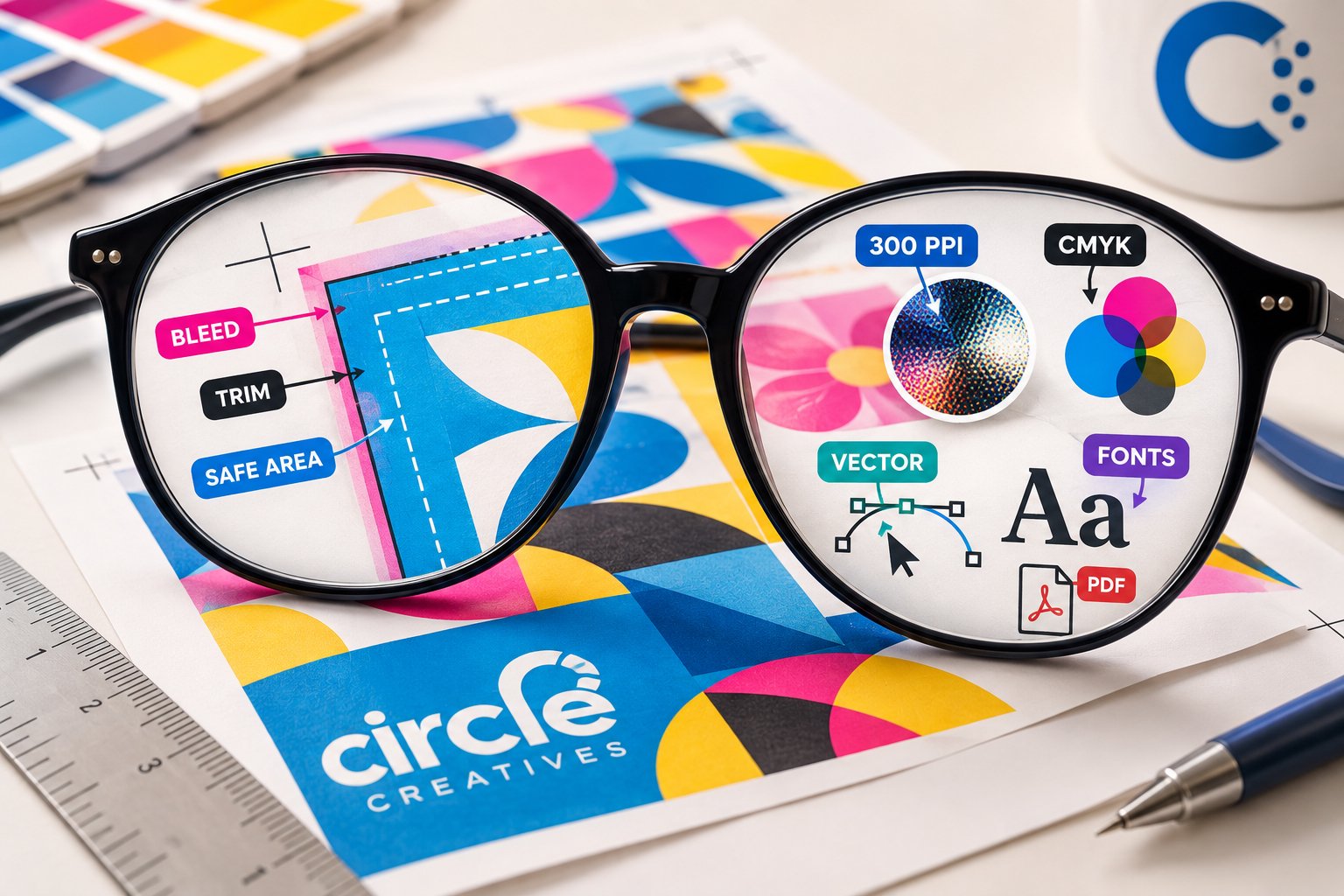
Stop me if you’ve heard this one before. Someone asks you for a print-ready PDF with bleed, CMYK colour and 300 ppi images, and suddenly it sounds as though the printer has switched languages.
Print specifications aren’t arbitrary hoops. They’re simply instructions that help ensure what comes off the press looks the way you intended.
So, what exactly are print specifications? Let’s translate some of that printer-speak.
Finished Size: How Big Is This Thing?
Some of the items we provide have standard sizes. Take a standard North American business card as an example. A common finished size is 3.5″ × 2″, in either horizontal or vertical orientation, or landscape versus portrait if you want to get technical.
When you order something with a standard size, you typically don’t need to specify the dimensions.
But what if you want to print a poster? Posters, signs and many of our other products can vary considerably in size. That’s when we’ll need to know the dimensions of the finished piece.
What about apparel?
Apparel works a little differently. We’ll need garment sizes, quantities, artwork dimensions and print locations, such as front, back or sleeve, to prepare an accurate quote.
For printed materials, finished size refers to the final dimensions of the product after it has been trimmed.
What if you don’t know the size? This sometimes happens with signage or window graphics. We can come to your business and take the necessary measurements for you.
Bleed: Yes, We Want Your Artwork Too Big
What do you mean by bleed?
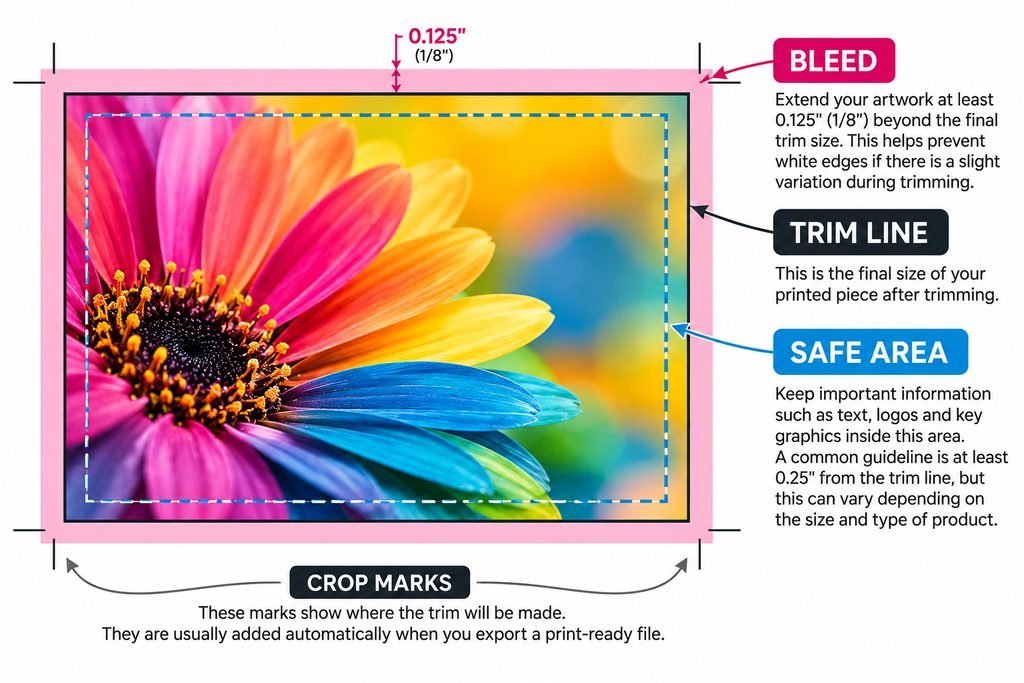
If your artwork has a colourful background, photograph or other design element that extends all the way to the edge, we need that artwork to continue slightly beyond the final trim line. That extra area is called the bleed.
Typically, we require at least 0.125″ (1/8″) of bleed around the edges of the artwork.
Why? Because there’s always a small amount of normal variation during trimming. Extending the artwork beyond the trim line helps prevent unwanted white slivers from appearing along the finished edge.
If your design has a white or blank background around the edges, bleed may not be necessary.
Want to dig a little deeper? Adobe has a useful guide to setting up bleed for commercial printing.
Safe Area: Give the Important Stuff Some Breathing Room
Where the bleed extends outside the trim line, the safe area stays inside it.
The safe area keeps important information from feeling as though it’s about to fall off the page. Logos, phone numbers, text and other essential elements should generally stay comfortably inside the trim.
For something like a standard letter-size document, leaving approximately 1/4″ around the edge can be a useful design guideline. The appropriate safe area can vary depending on the size and type of product.
Resolution: Why Does My Logo Look Fuzzy?
For most standard printed pieces, we typically want photographs and other raster images to have an effective resolution of around 300 ppi at their final printed size.
That final printed size part matters.
A photograph may have plenty of resolution when it’s small, but enlarge it significantly and its effective resolution decreases. That’s when an image that looked perfectly fine on your screen can suddenly look blurry or pixelated in print.
Logos, text and other line artwork are even better supplied as vector artwork whenever possible. Unlike photographs, vectors aren’t made from a fixed grid of pixels, so they can usually be enlarged without becoming blurry.
RGB vs. CMYK: Your Screen Is Glowing. Paper Isn’t.
Why doesn’t my finished product look exactly like it did onscreen?
Even when the resolution is perfect, sometimes the colours look, well… off.
Screens typically display colour using RGB: Red, Green and Blue. Your monitor creates colours using combinations of coloured light.
Print is a different beast altogether.
Commercial printing commonly uses CMYK: Cyan, Magenta, Yellow and Key (Black). Instead of combining coloured light, CMYK printing combines inks to reproduce a range of colours on paper and other materials.
Sometimes an RGB colour converts quite closely to CMYK. Other times, not so much. Some extremely bright colours you can see on a screen simply can’t be reproduced identically in CMYK.
If your brand uses specific colour values, send those along too. Hex codes can give us a useful reference, but because hex colours are designed for screens, their CMYK equivalents may not reproduce identically in print.
Want to keep decoding printer-speak? Explore more tips and guides in Around the Circle.
Fonts: Don’t Let Your Typeface Disappear
Why do the fonts look different?
Sometimes we receive artwork created in programs such as Adobe Illustrator or Canva, but the fonts used in the design aren’t available to us.
One advantage of supplying a properly prepared, print-ready PDF is that fonts can be embedded in the file, helping preserve the typography you intended.
If changes need to be made after the artwork has been submitted, however, we may need access to the original font. Let us know which fonts you’ve used when possible.
Like image resolution, colour and dimensions, typography is part of making sure your finished product looks the way you intended. Without the original font, we may need to find a substitute, and even a similar typeface can change the appearance of a design.
File Formats: What Should I Actually Send?
What file formats do we use?
The answer depends somewhat on what we’re making.
For finished print artwork, we generally prefer a properly prepared PDF. It can preserve text, vector artwork and images in one convenient file, provided the resolution, colours, fonts and other settings have been prepared correctly.
For photographs and other raster graphics, formats such as PSD, JPG and PNG may be appropriate depending on the project, dimensions, resolution and colour requirements.
For logos and other graphics that may need to be resized, vector artwork is preferable whenever available. Common vector formats include AI, EPS, SVG and vector PDF.
Still not sure?
Ask us before converting everything into seventeen different file formats.
Print-Ready Doesn’t Mean “We Refuse to Help”
Print-ready simply means the file already contains what production needs without requiring additional artwork preparation.
If your file isn’t print-ready, that’s not a disaster.
Circle Creatives can review what you have, explain what may need attention and provide graphic design and artwork preparation where required.
A Note About AI…
AI-generated artwork can look fantastic on screen without necessarily being suitable for production.
Depending on how it was created, it may have insufficient resolution, contain details that don’t reproduce cleanly or be difficult to resize for large-format applications.
If you’re unsure whether an AI-generated image will work for your project, send it to us. We can take a look and discuss the available options.
The Print-Spec Cheat Sheet
SIZE → Correct finished dimensions
BLEED → Artwork extends beyond the trim
SAFE AREA → Important content stays away from the edge
RESOLUTION → Images have enough detail at their printed size
COLOUR → Appropriate colour mode for production
FONTS → Properly embedded or otherwise available
FILE → Usually a production-ready PDF
Still Don’t Speak Print? No Problem.
You don’t need to become a prepress expert before working with us.
Tell us what you’re making, send us what you have, and we’ll help you figure out the rest.